
域名解析
面板域名以nz.a.com为例
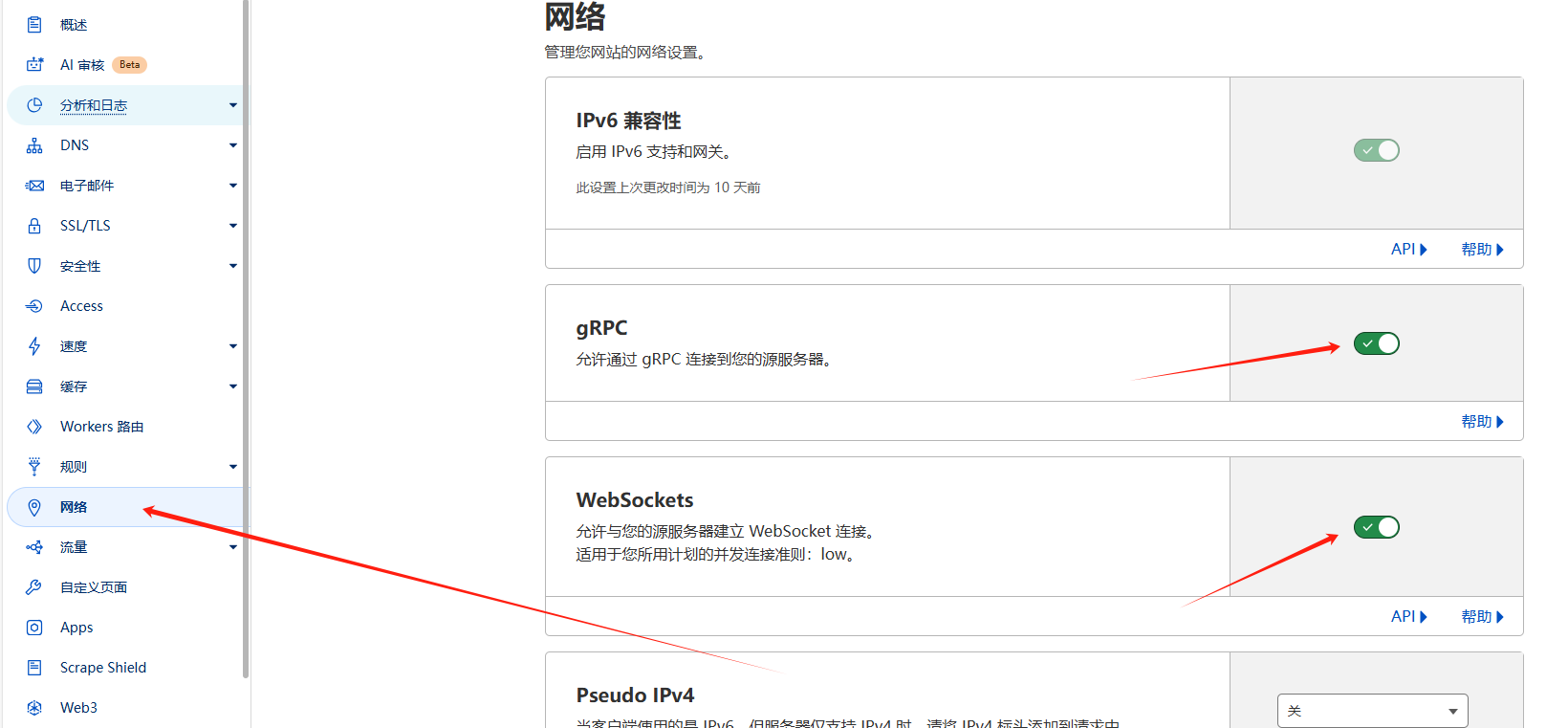
Cloudflare中添加A记录nz.a.com指向Dashboard 服务器 IP,开启小黄云。a.com域名设置页面——网络,选择开启WebSockets 和 gRPC ;SSL/TLS模式选择完全(严格)。
在服务器中安装 Dashboard
在面板服务器中,运行以下安装脚本(建议以以 Docker 安装。):
curl -L https://raw.githubusercontent.com/nezhahq/scripts/refs/heads/main/install.sh -o nezha.sh && chmod +x nezha.sh && sudo ./nezha.sh以 Docker 安装为例,安装完成后按提示输入以下信息:
请输入站点标题:- 自定义站点标题。请输入暴露端口:- 公开访问端口(默认 8008,可自定义)。请指定后台语言:- 选择语言偏好。
输入完成后,等待拉取 Docker 镜像。安装结束后,如果一切正常,你可以通过域名和端口号访问 Dashboard,例如:http://nz.a.com:9999
如果需要再次运行安装脚本,可输入以下命令:
./nezha.sh打开管理脚本。
登录到 Dashboard 配置界面
后台管理界面的路径为 /dashboard,你只需访问:http://nz.a.com:9999/dashboard
首次登录的默认用户名和密码均为 admin。
反向代理
1panel面板中新建反向代理网站,网站 —— 创建网站 —— 反向代理,主域名填写nz.a.com,代理地址填写localhost:9999
证书页面自行设置Acme账户、DNS账户为nz.a.com申请证书。
网站页面点击nz.a.com进入网站设置,开启https。
点击配置文件,最下方添加以下代码,保存并重载。

# upstream 配置
upstream dashboard {
    keepalive 512;
    server localhost:9999;
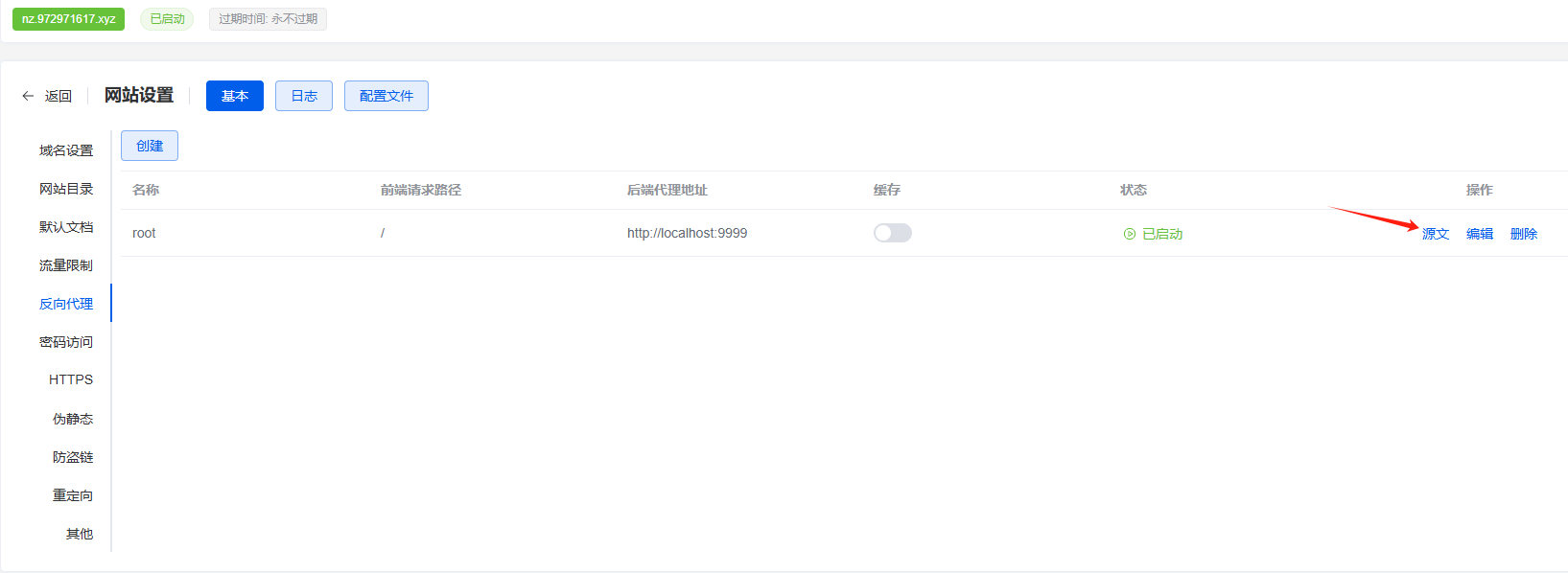
}打开网站 —— 反向代理 —— 源文,使用以下代码替换原内容,点击确认。至此,反向代理设置完成。
location ^~ / {
    proxy_pass http://localhost:9999;
    proxy_set_header Host $host;
    proxy_set_header X-Real-IP $remote_addr;
    proxy_set_header X-Forwarded-For $proxy_add_x_forwarded_for;
    proxy_set_header REMOTE-HOST $remote_addr;
    proxy_set_header Upgrade $http_upgrade;
    proxy_set_header nz-realip $http_cf_connecting_ip;
    proxy_set_header Connection "upgrade";
    proxy_set_header X-Forwarded-Proto $scheme;
    proxy_http_version 1.1;
    proxy_read_timeout 3600s;
    proxy_send_timeout 3600s;
    proxy_buffer_size 128k;
    proxy_buffers 4 128k;
    proxy_busy_buffers_size 256k;
    proxy_max_temp_file_size 0;
    add_header X-Cache $upstream_cache_status;
    add_header Cache-Control no-cache;
    proxy_ssl_server_name off;
    proxy_ssl_name $proxy_host;
    add_header Strict-Transport-Security "max-age=31536000";
}

underscores_in_headers on;
set_real_ip_from 0.0.0.0/0; # CDN 回源 IP 地址段
real_ip_header CF-Connecting-IP; # CDN 私有 header,此处为 CloudFlare 默认

# gRPC 服务
location ^~ /proto.NezhaService/ {
    grpc_set_header Host $host;
    grpc_set_header nz-realip $http_CF_Connecting_IP;
    grpc_read_timeout 600s;
    grpc_send_timeout 600s;
    grpc_socket_keepalive on;
    client_max_body_size 10m;
    grpc_buffer_size 4m;
    grpc_pass grpc://dashboard;
}

# WebSocket 服务
location ~* ^/api/v1/ws/(server|terminal|file)(.*)$ {
    proxy_set_header Host $host;
    proxy_set_header nz-realip $http_cf_connecting_ip;
    proxy_set_header Origin https://$host;
    proxy_set_header Upgrade $http_upgrade;
    proxy_set_header Connection "upgrade";
    proxy_read_timeout 3600s;
    proxy_send_timeout 3600s;
    proxy_pass http://localhost:9999;
}
安装Agent
打开地址nz.a.com ,点击登录初始用户名、密码均为admin,登录后立即进入管理页面点击头像 —— 个人信息 —— 更新个人资料修改用户名和密码。
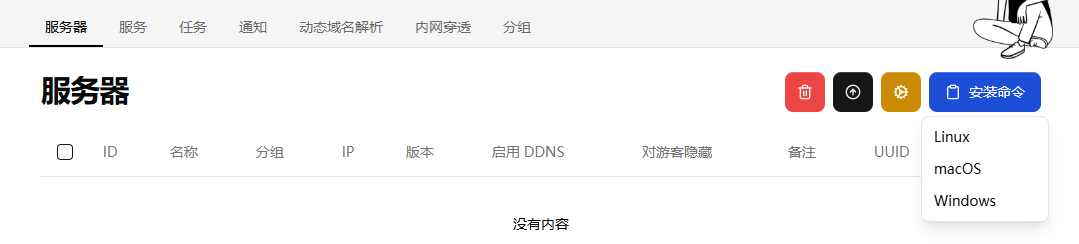
点击安装命令,选择对应的系统到SSH界面进行安装。
添加TCP-Ping延迟测试
全国各省份三网 TCP-Ping IPv4 地址:https://www.nodeseek.com/post-68572-1
全国各省份三网 TCP-Ping IPv6 地址:https://www.nodeseek.com/post-129987-1
以浙江移动为例,服务页面创建服务,名称:浙江移动,目标:zj-cm-v4.ip.zstaticcdn.com:80,类型:TCPing
添加telegram通知
通知页面点击“+”,创建通知,名称自定,URL填写https://api.telegram.org/bot<你的机器人Token>/sendMessage?chat_id=<你的用户ID>&text=#NEZHA#,将 <你的机器人Token> 和 <你的用户ID> 替换为实际值。
获取 URL 参数
获取机器人 Token:与 @BotFather 对话,发送/newbot创建新机器人,获取 Token。
获取用户 ID:与 @userinfobot 对话,获取你的用户 ID。
与机器人对话:先与新创建的机器人发送一条消息,确保机器人可以发送消息给你。
分组——通知,页面点击“+”,编辑通知分组,名称自定,通知勾选提前创建的telegram通知,确认即可。
警报规则参考哪吒官方文档,以离线通知为例:
通知——警报规则,点击“+”,创建警报规则,名称:离线通知,规则:[{"Type": "offline", "Duration": 10}],通知组:勾选
telegram通知,启用:勾选,点击确认。
面板设置完成,可至服务器页面,点击安装命令,根据系统选择安装命令前往被控vps运行。
注:被控端禁用网页SSH
sed -i 's/disable_command_execute: false/disable_command_execute: true/' /opt/nezha/agent/config.yml && systemctl restart nezha-agent